Organize tests into suites
Name a group of test cases and run them together as a suite. Use suites to run part of your app, such as a smoke check or one feature, instead of everything.
Before you start
- Have test cases in your app. Pie writes them during discovery, and you can create your own.
- Decide which URL or build the suite runs against, and store a login if the flow needs one. See Credentials.
Create the suite
In the sidebar, select Test Suites, then Add suite. Enter a Suite name. Pie opens the new suite’s page, where you choose its tests and settings.
Add tests
In What it tests, select Add tests. Search by name or description, or narrow the list with All areas. Select the test cases you want, then select Update tests. A test case can belong to more than one suite.

Set how it runs
In How it runs, set where and how the suite’s tests execute.
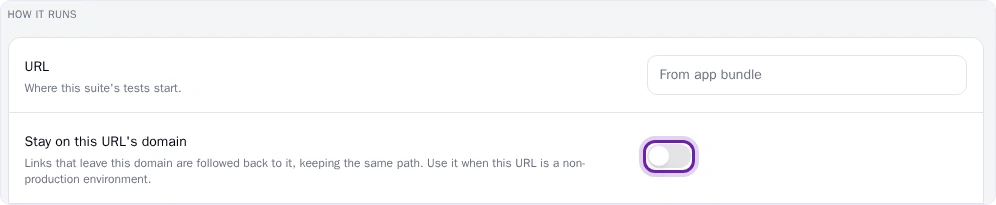
URL is where the suite’s tests start. Leave it empty to use the app’s URL. Turn on Stay on this URL’s domain when the URL is a non-production environment: links that leave the domain are followed back to it, keeping the same path. Screen resolution sets the viewport.
Credential picks the login the tests sign in with. It defaults to the app’s default credential.
Add suite instructions
In Instructions, tell Pie how to run this suite, such as which test payment method to use. Leave it empty to use your app instructions. Once you write something here, it replaces the app instructions for this suite.
Save the suite
Select Save changes. A suite needs at least one test case to save. If you leave the page with unsaved changes, Pie asks what to do with them.
Run the suite
On the suite page, select Run now, then Start Run. The suite is already picked for you.
Delete a suite
On the suite page, select the delete control next to Run now and confirm. Deleting a suite doesn’t delete its test cases.

What you’ll see
Your suite appears in Test Suites, with the tests, run settings and instructions you saved. A run started from the suite appears in Run History.
Add at least one test case first: an empty suite can’t run.
Do this from your agent or API
Your agent works with suites through create_test_suite, get_test_suites, update_test_suite and delete_test_suite. To add or remove test cases, pass addTestCaseIds or removeTestCaseIds to update_test_suite. Over HTTP, use POST /v1/test-suites, PUT /v1/test-suites/{testSuiteId} and DELETE /v1/test-suites/{testSuiteId}.