Test Suites
Test suites are logical groupings of test cases that help you organize, manage, and execute tests efficiently. Pie automatically generates suites during app discovery, and you can create custom suites to match your testing workflow.
What Are Test Suites?
A test suite is a collection of related test cases grouped together for organized execution. When Pie explores your application during discovery, it identifies distinct features and user flows, then organizes related test cases into suites automatically.
Suites give you control over what gets tested and when:
- Targeted testing: Run only the tests relevant to your current work
- Faster feedback: Execute a focused smoke suite instead of the full regression
- Resource efficiency: Avoid running unnecessary tests that slow down your workflow
- Clear organization: Group tests by feature, priority, or test type
Auto-Generated Suites
When Pie completes discovery on your application, it automatically creates suites based on detected features. For example, an e-commerce application might generate:
| Suite | Coverage | Typical Test Count |
|---|---|---|
| Product Catalog | Search, filtering, product details | 20-30 |
| Checkout Flow | Cart, payment, order confirmation | 20-25 |
| User Authentication | Login, registration, password reset | 10-15 |
| Smoke Tests | Critical paths across all features | 40-60 |
The exact suites depend on your application’s functionality. Pie discovers and organizes them based on the features it finds during exploration.
Accessing Suites Manager
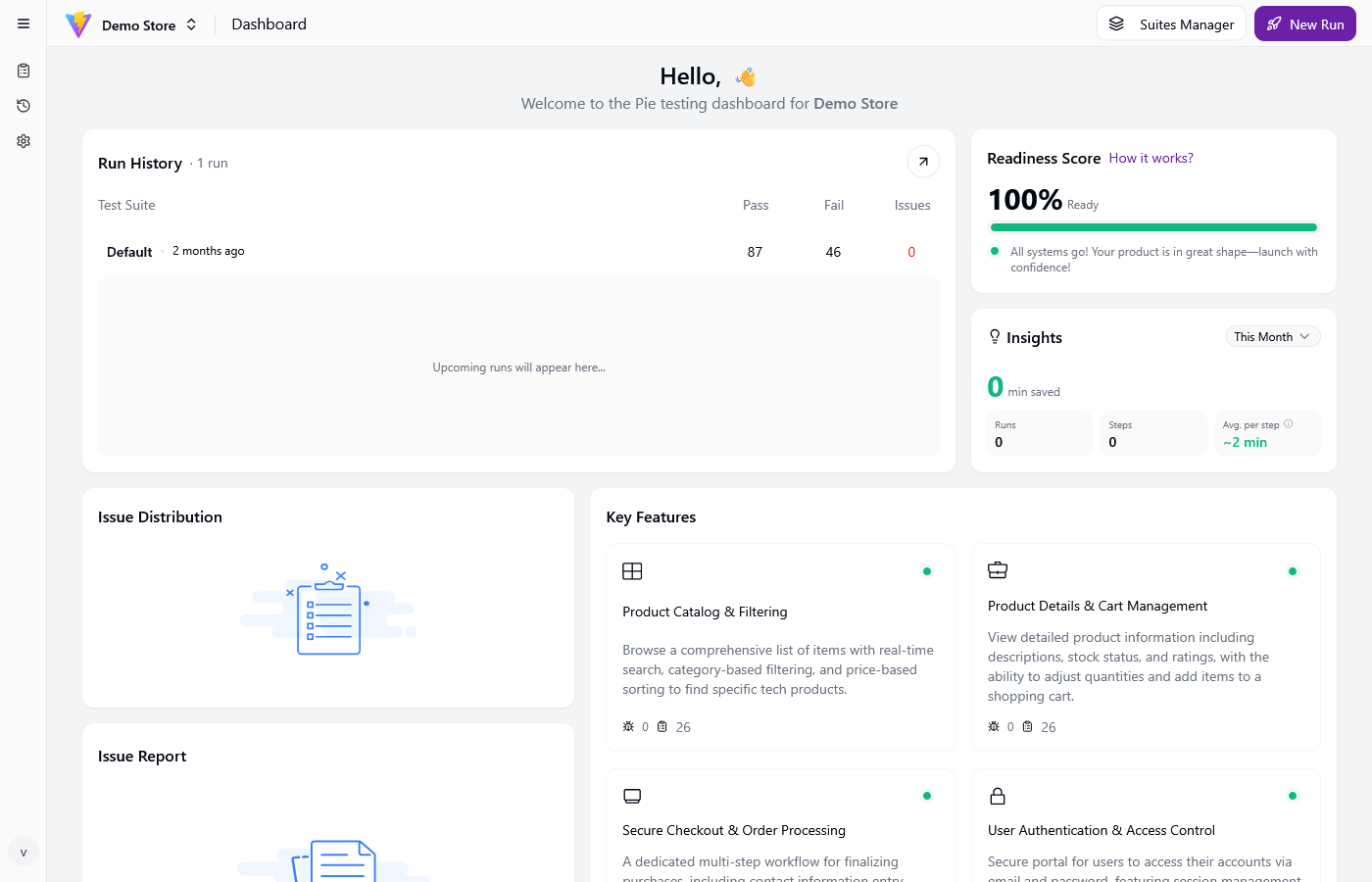
From your Pie dashboard, locate the Suites Manager button in the header navigation (top right, next to “New Run”). Click it to open the Suites Manager modal.
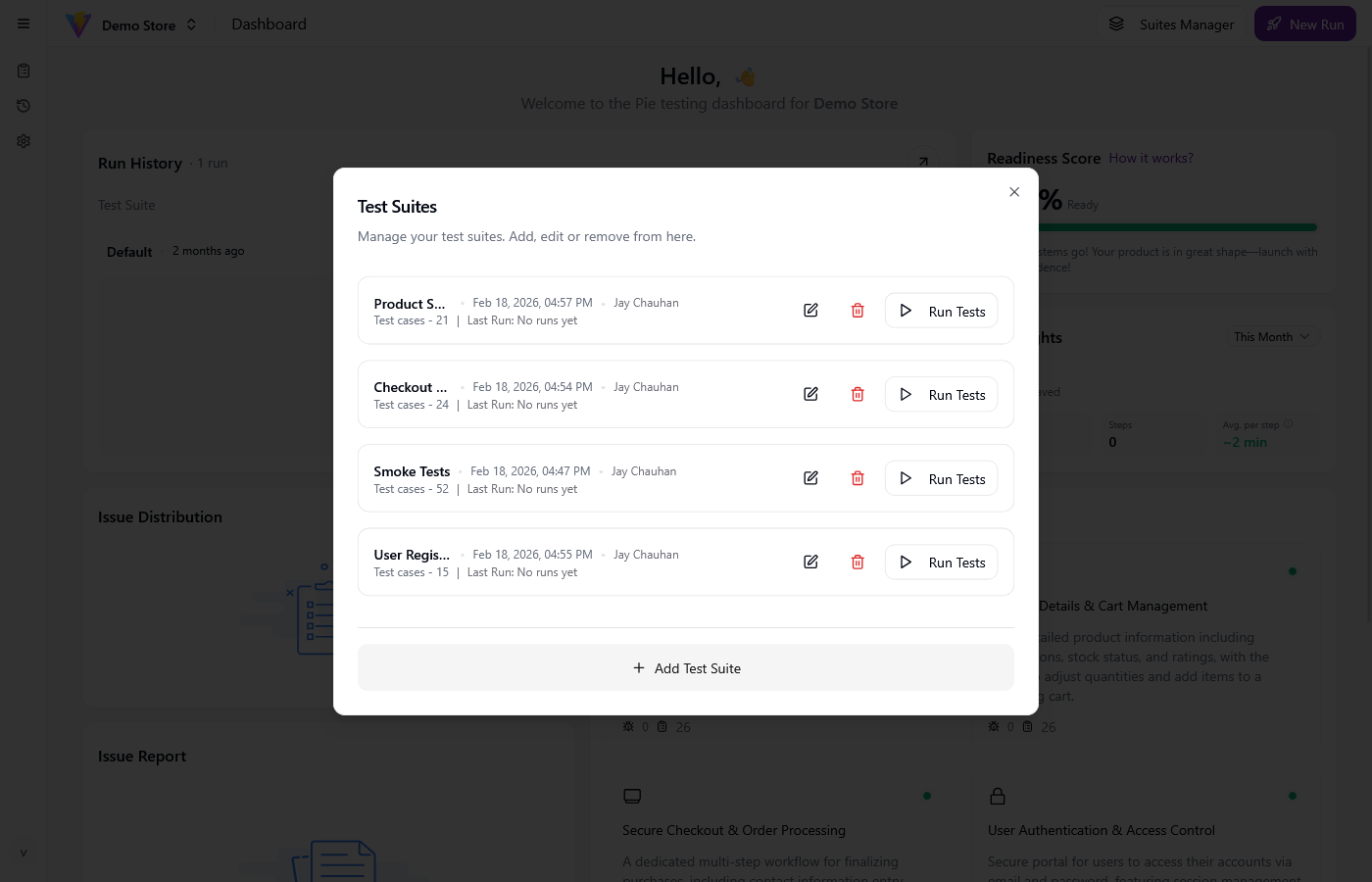
The Suites Manager displays:
- Suite name: The logical grouping name
- Test case count: Number of tests in each suite
- Last run status: When the suite was last executed
- Run Tests button: One-click execution for each suite
Creating Custom Suites
Custom suites let you group tests for specific purposes beyond the auto-generated organization.
Step 1: Open Suites Manager
Click the Suites Manager button in the dashboard header.
Step 2: Create New Suite
- Click Add Test Suite
- Enter a descriptive name (e.g., “Pre-Release Validation” or “Sprint 23 Features”)
- Click Create Suite
Your new suite appears in the list, ready for test cases.
Step 3: Add Tests to Your Suite
- Navigate to Test Cases in the sidebar
- Select the test cases you want to add (check the boxes)
- Click Add to Suite from the actions menu
- Choose your target suite from the dropdown
- Confirm the selection
Note: Tests can belong to multiple suites simultaneously. Adding a test to a custom suite doesn’t remove it from existing suites.
Common Suite Patterns
Release Validation Suite
Group your P0 critical tests for pre-release checks. Keep this suite lean (30-50 tests) for fast feedback before deployments.
Feature-Specific Suite
When working on a specific feature, create a suite containing only tests for that area. This speeds up development cycles.
Regression Buckets: P0, P1, P2
Create tiered suites by priority:
- P0: Must-pass tests (run daily)
- P1: Important tests (run 2-3x per week)
- P2: Full coverage (run weekly)
Running Test Suites
Click the Run Tests button next to any suite in the Suites Manager to execute all tests in that suite immediately.
Recommended Execution Patterns
Based on common customer workflows:
| Pattern | Suite | Frequency | Purpose |
|---|---|---|---|
| Daily smoke test | Smoke Tests | Every day | Catch critical regressions quickly |
| Weekly regression | Full Regression | Weekly | Comprehensive coverage |
| Pre-release validation | Release Suite | Before deploys | Ensure release readiness |
| Sprint testing | Feature Suite | During sprint | Focused feature validation |
Suite-Level Configuration
Each suite can have its own configuration overrides:
Credentials: Assign specific credentials to a suite for testing different user roles. Your Admin Features suite might use admin credentials, while Customer Flows uses standard customer login.
App Instructions: Provide suite-specific app instructions to guide test execution. A Checkout suite might include instructions about test payment methods.
Managing Suite Size
Pie supports up to 250 test cases per suite for optimal execution performance. If you need more coverage:
- Split large suites into focused sub-suites
- Create a parent suite for full regression, child suites for daily runs
- Archive tests that are no longer relevant
Merging Test Suites
To combine two suites:
- Create a new target suite with a combined name
- Add all test cases from both source suites
- Verify the merged suite runs successfully
- Archive or delete the original suites if no longer needed
Best Practices
Start With Auto-Generated Suites
Pie’s discovery creates sensible groupings based on your app structure. Use these as your foundation before creating custom suites.
Keep Smoke Suites Lean
Your daily smoke suite should contain 40-60 critical path tests. This balances coverage with execution speed for rapid feedback.
Use Suites for Cost Control
Running comprehensive regression suites costs more than targeted smoke tests. Structure your suites to match your budget and testing cadence:
- Daily: Smoke suite (~50 tests)
- Mid-week: Core regression (~200 tests)
- Weekly: Full regression (all tests)
Document Suite Purpose
Name suites descriptively so team members understand their purpose:
- ✅ “Checkout Critical Path” instead of “Suite A”
- ✅ “Admin Panel Regression” instead of “Admin Tests”
Troubleshooting
Tests Not Appearing in Suite
If tests you added aren’t showing up:
- Refresh the Suites Manager page
- Verify the tests weren’t archived
- Check if filter settings are hiding certain test types
Suite Execution Failures
If an entire suite fails to execute:
- Verify app credentials are configured correctly
- Check if the app URL is accessible
- Review app instructions for conflicting settings
Duplicate Tests Across Suites
Tests appearing in multiple suites is expected behavior. To consolidate:
- Identify which suite should be the “source of truth”
- Remove duplicates from other suites
- Use the primary suite as the basis for custom suites
Related Features
Test suites work alongside other Pie features:
- Test Cases: The individual tests that make up your suites
- Credentials: Configure authentication for suite-level testing
- App Instructions: Provide suite-specific context for test execution
- The Dashboard: Monitor suite execution results and trends
- MCP Integration: Automate suite runs through CI/CD
Need Help?
Contact your Pie support team if you have questions about suite management or test organization strategies.