Connect Pie Bot
Pie Bot is the GitHub integration that powers Pie Loop. Once it’s connected, Pie reads every PR your team merges, tests what changed, and opens PR fixes for any regressions it finds. No setup required each time. Let’s get it connected.
What you’ll need:
- A Pie account with an active workspace
- A GitHub account with access to the repositories you want to connect
- GitHub organization admin rights, or the ability to request them (see Step 5)
- Web apps: A preview URL so Pie can test UI changes against each PR. Vercel generates these automatically; GCP and custom infrastructure require manual setup.
- Mobile apps: Your
.apk(Android) or.app(iOS) build, ready to upload.
Step 1: Open Settings from the Dashboard
From the Pie dashboard, click Settings in the bottom of the left sidebar navigation.
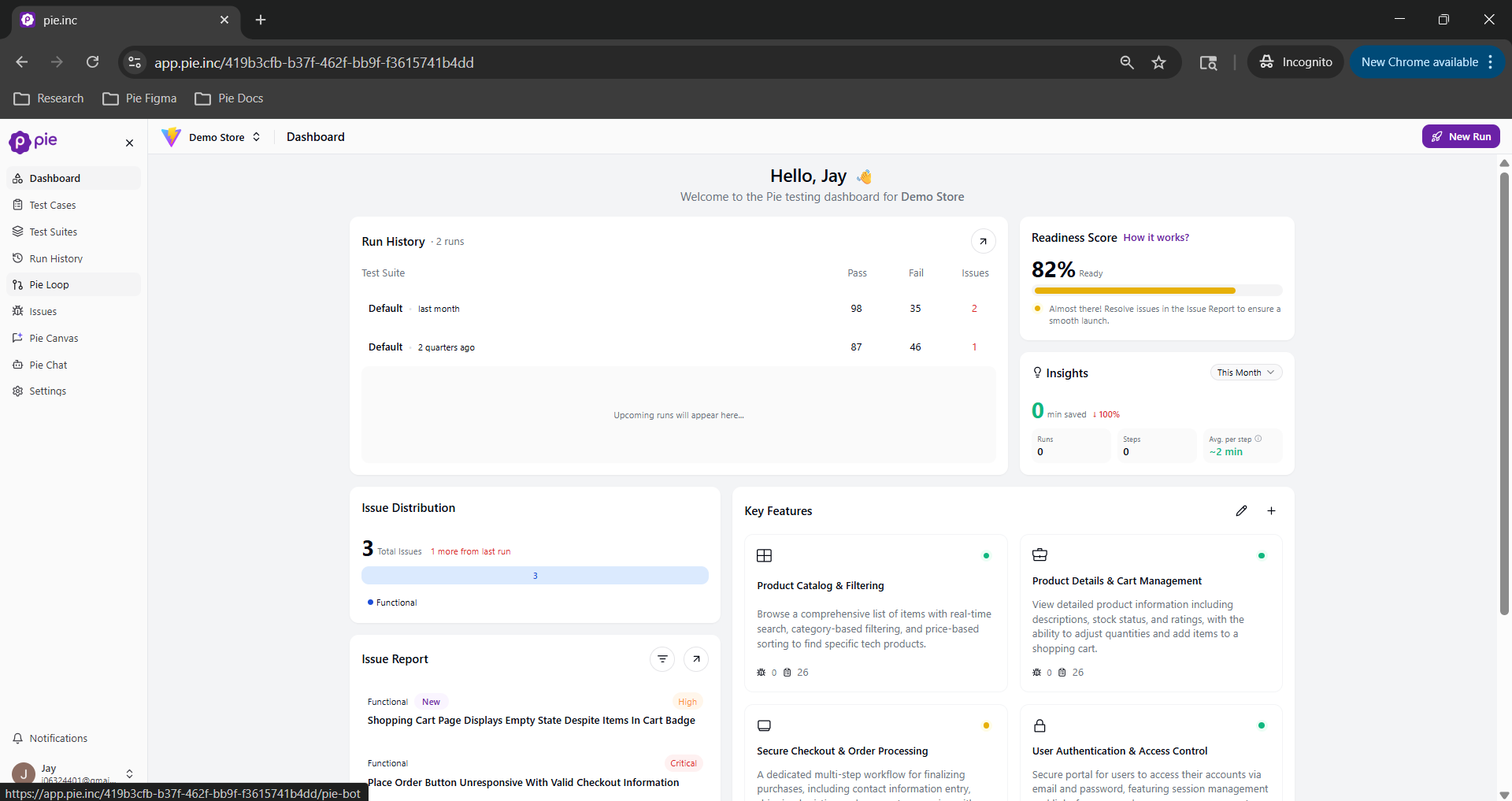 Go to Settings from the sidebar, at the bottom of the left navigation
Step 2: Navigate to Integrations and find Pie Bot
In Settings, click Integrations in the left menu. You’ll see a list of available integrations. Find Pie Bot and click Connect to begin the GitHub authorization flow.
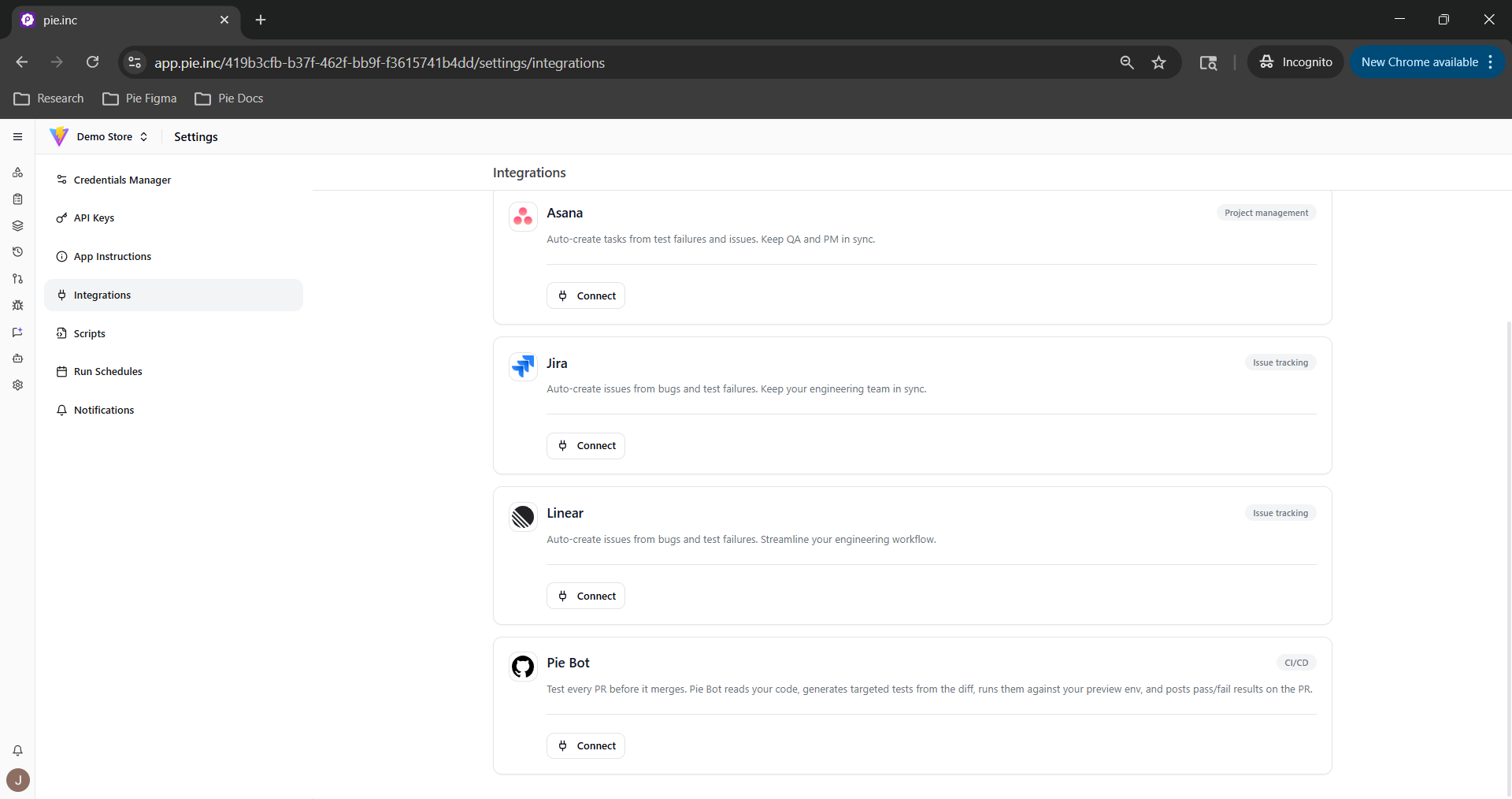 Find Pie Bot in Settings → Integrations. Click Connect to begin.
Step 3: Sign in to GitHub
You’ll be redirected to GitHub to authorize the pie-pr-bot app. Sign in with your GitHub credentials if prompted.
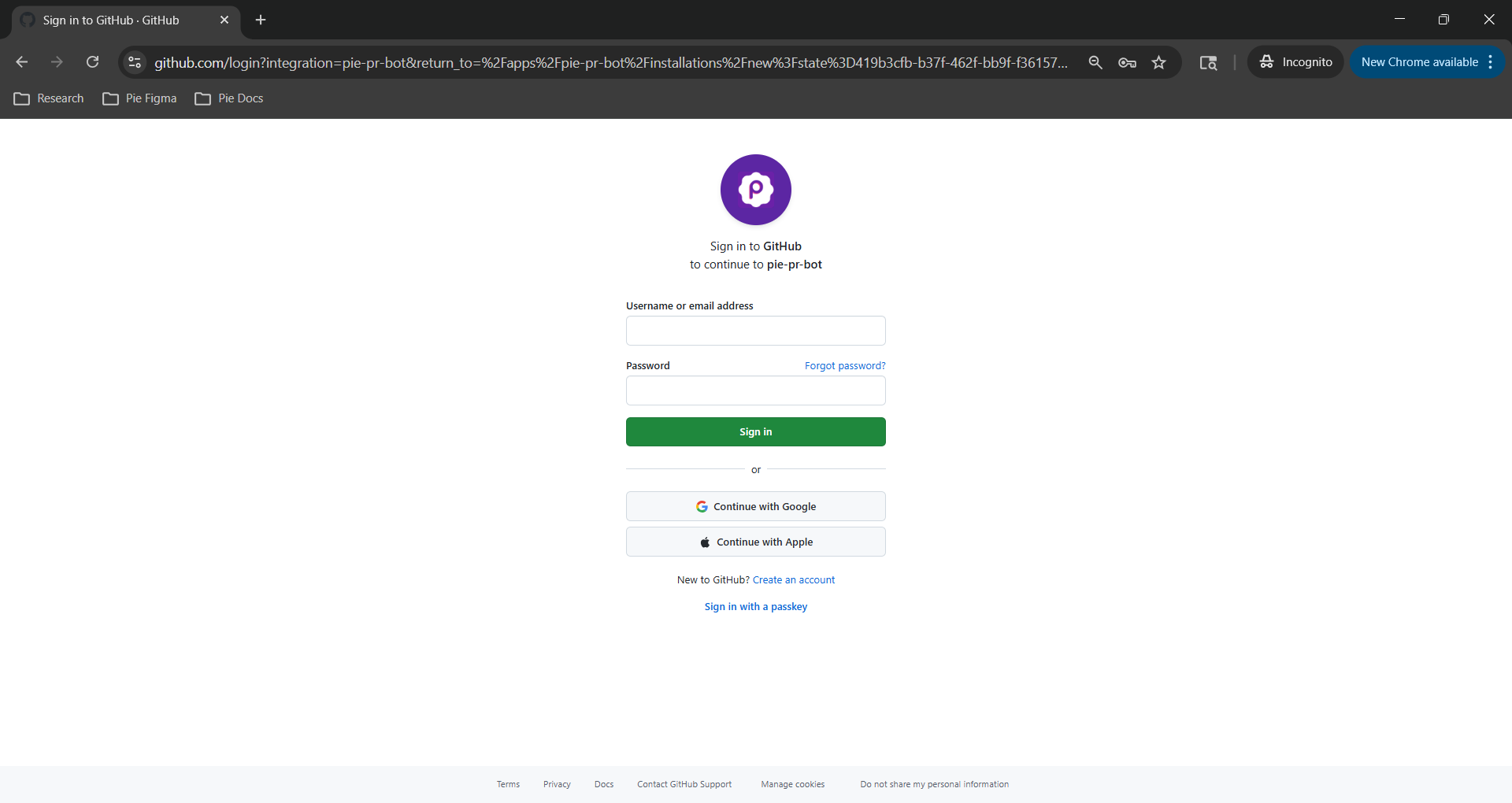 GitHub will ask you to sign in to authorize Pie Bot access
Step 4: Select repositories
After signing in, GitHub will ask which repositories Pie Bot should have access to. You can choose:
- All repositories — Pie Bot will run on every PR across your organization
- Only select repositories — recommended for getting started; choose one or two repos to run first
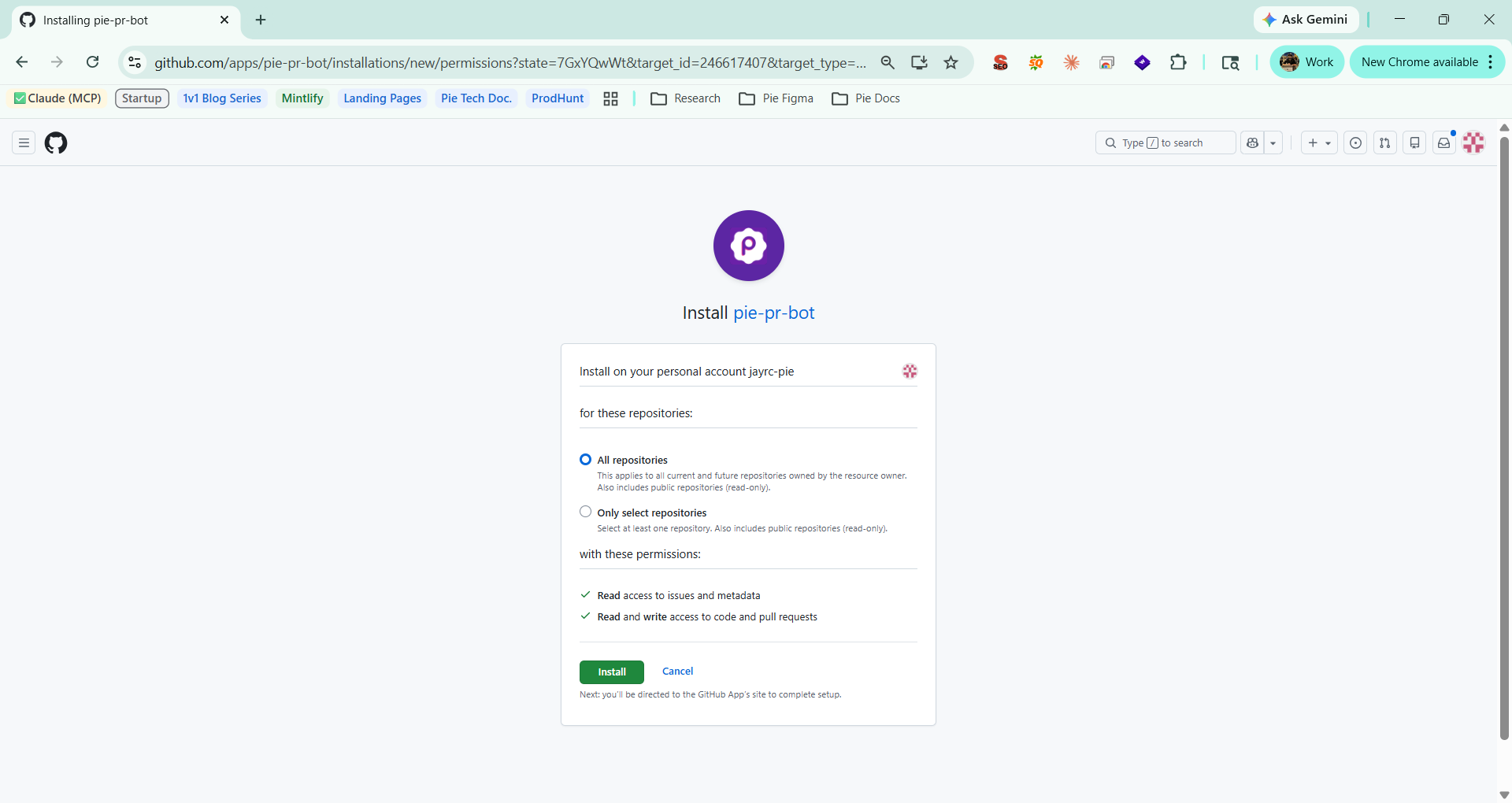 Select repository scope. Pie Bot requests read and write access to code and pull requests to post results and open PR fixes.
Select your preferred scope and click Install & Authorize.
Step 5: Admin approval (if required)
If your GitHub organization requires admin approval for third-party app installations, Pie Bot will appear as a pending installation until an org admin approves it. Non-admin users who attempt to install will automatically trigger an approval request email to the org admin.
What Pie Bot requests access to:
| Permission | Level | Why |
|---|---|---|
| Code (contents) | Read and Write | To read PR diffs, create fix branches, and commit fixes |
| Pull requests | Read and Write | To post test results and status checks on the PR |
| Repository metadata | Read | To identify repos and branches |
Pie Bot does not store your source code. It does not use your codebase to train any model. Access is scoped strictly to what is needed to generate and run tests from PR diffs.
To approve as an org admin:
- Go to your GitHub organization page and open Settings
- In the left sidebar, click GitHub Apps (under Integrations)
- Find pie-pr-bot in the pending or installed list and click Review request
- Review the requested permissions listed above
- Click Install to approve
Once approved, Pie Bot becomes active immediately. No further action is needed in Pie.
Step 6: You’re connected
Return to Pie. Pie Bot is now active. The next PR your team opens will trigger a test run automatically, and results will appear in Coverage Stories under Pie Loop in the sidebar.
Need Help?
- Support: support@pie.inc