Decide if an issue is a real bug
Pie reports an issue when your app doesn’t behave the way a test expected. It might be a real bug, a change you made on purpose, or noise from test data or a login. Check the evidence, then record your decision so Pie tracks the issue or closes it.
Before you start
- Open an issue on the Issues page. Issues come from runs. See Read a run.
- Know what your app should do in that flow.
Open the issue
In the sidebar, select Issues, then select an issue on the Open tab.
Compare expected and observed
The Expected vs observed card has what the test expected and what Pie saw. The Steps card has the steps that led there, with screenshots.
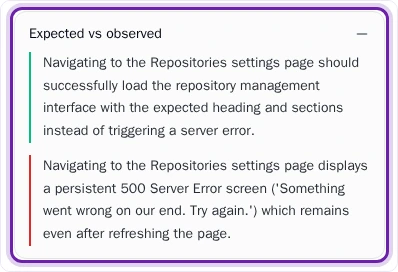
Then ask whether the expectation is right. If your product changed on purpose, or the value Pie saw is the correct default, the test is out of date and the issue isn’t a bug.
Check where Pie saw it
The Where Pie saw this card lists the affected test cases and the runs that hit the issue, with a First seen time. Switch between the affected test case and the repro test to compare the original context with the focused reproduction.
An issue seen once and never again is more likely to be noise. One that repeats across runs is more likely a real bug.
Record your decision
Choose the outcome that fits:
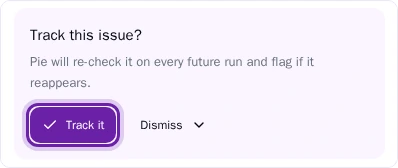
- A real bug: Select Track it. Pie re-checks the issue on every future run and flags it if it comes back.
- Already fixed: Select Dismiss, then It’s resolved, and confirm.
- Not a bug: Select Dismiss, then Not a real issue, pick the reason that fits and confirm. Use this for expected behavior and for failures caused by test data or login setup.
To send a real bug to your tracker, see Triage issues.
Watch the repro test
After you select Track it, Pie builds a repro test: a test case that reproduces the bug.
While the repro test still fails, the issue shows Repro and the bug is still there. When the repro test doesn’t find the bug in the most recent run, the issue shows Looks resolved. Select Mark as resolved and confirm to close it, or Keep tracking to keep watching.
If Pie can’t build a repro, the issue stays tracked and Pie may try again.
What you’ll see
A tracked issue shows who’s tracking it and an Untrack option. A dismissed issue moves to the Resolved tab, or to Rejected if you chose Not a real issue.
Pie groups related findings into one issue. For how, see How Pie works.
Do this from your agent or API
The MCP tool get_issue_repro_history returns a fix-verification summary for an issue: a verdict, its evidence source and the recent trend. resolve_issues and reject_issues record the decision. See MCP tools.