Create a Loop
Pie Loop runs your suites without you opening New Run each time: on a schedule, when a new mobile build uploads, or when your own tools call the API. Create a Loop for each saved set of suites and the triggers that start them.
Before you start
- Have at least one suite with test cases. An empty suite shows in the list but can’t be picked. See Organize tests into suites.
- For an API trigger, create an API key. See API keys.
- For the On a new build trigger, use an iOS or Android app. Web apps don’t have this trigger, because there’s no build to upload.
Create the Loop
In the sidebar, select Loop and create a Loop. Give it a name you’ll recognize, such as “Nightly regression”. Pie opens the new Loop’s page, where you set up the rest.
Add suites
Under What it tests, select + Add a suite and choose one or more suites. Each suite row shows how many tests it holds.
Add a suite first: a Loop can’t run without one.
Choose when it runs
Under When it runs, select Add a trigger. In Configure triggers, tick each trigger you want and select Save.
On a schedule runs at a recurring time, such as daily or weekdays. Choose the time and the time zone, or turn on Custom cron to enter a cron expression.
On a new build runs when you upload a new build. It appears for iOS and Android apps only.
API trigger runs the Loop from your CI, a script or an AI tool. After you save, the Loop’s page has a command you can copy. See Trigger a Loop from CI.
Select Show command on the API trigger row to open it.
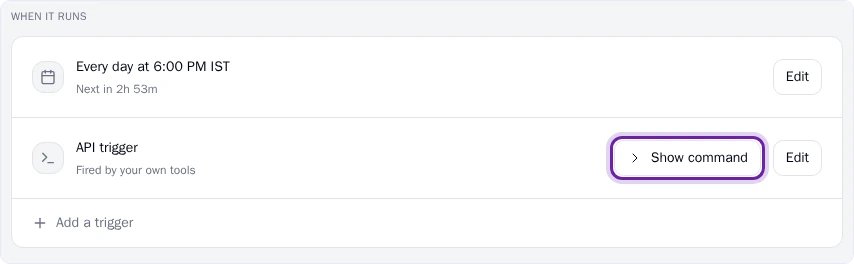
Show command on the API trigger row
You can tick more than one trigger.
Run the Loop now
Select Run now on the Loop’s page, or open More actions on the Loop’s card and select Run now. Select Run now again to confirm. If the Loop includes PR scan, pick Pull requests to scan for this run first. See Add PR scan to a Loop.
Running a Loop now doesn’t touch its schedule: the next scheduled run still happens on time. Each extra run counts toward your daily budget.
Watch the runs
Open the Loop to see its runs. In Run History, each firing is one card, even when it ran several suites.
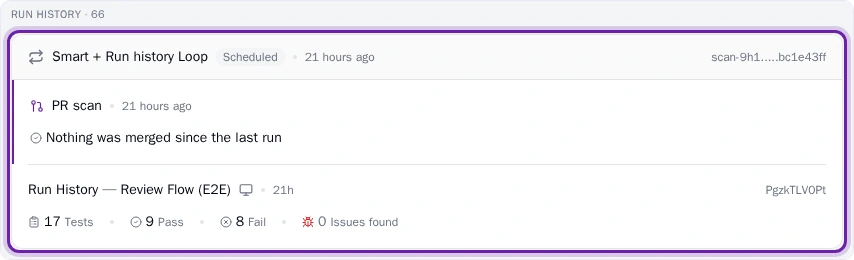
What you’ll see
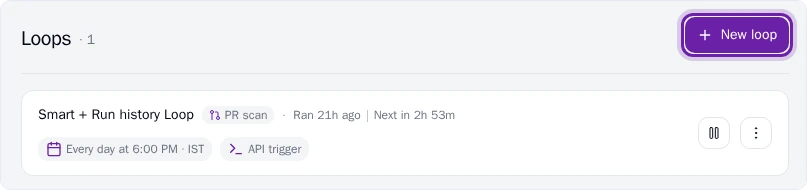
On the Loops tab, each Loop has a card. The card shows when the Loop last ran and when it runs next, or Manual only if it has no schedule.
When a Loop is missing a suite or a trigger, its card shows Finish setup. Select it to open the Loop and add what’s missing.
To stop a Loop from running, use the pause button on its card or Pause on the Loop’s page. Select Resume to turn it back on. A Loop whose only trigger is the API trigger or On a new build also shows Manual only on its card, and its page has no Pause button.
To remove a Loop, open More actions on its card and select Delete. Deleting a Loop stops all of its scheduled runs and can’t be undone, so Pie asks you to confirm.
Do this from your agent or API
Start a Loop over HTTP with POST /v1/loops/trigger. For the command and the pipeline files, see Trigger a Loop from CI.