Run a suite
Run a suite by hand when you want an answer now. Pick the suite, check the URL or build it runs on, and start it. Then follow along live as Pie works through your tests.
Before you start
- Add at least one test case to your suite: an empty suite can’t run. See Organize tests into suites.
- Web apps: have the address of the environment you want to test ready.
- iOS and Android apps: upload a simulator build first. See Prepare mobile builds.
- Store a login first if your app needs one. See Credentials.
Open the Add New Run dialog
Select New Run.
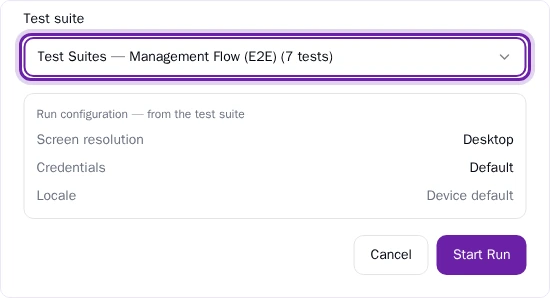
Pick a suite
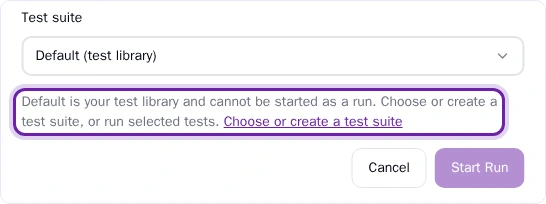
In Test suite, choose the suite to run. New Run runs a suite, so add a test to a suite first. To run a single test that sits in no suite, select Rerun on the test.
Check the URL or build
For a web app, picking a suite sets Run URL to the suite’s URL, or to your app’s URL when the suite has none. To test a different environment, change Run URL after you pick the suite.
For an iOS or Android app, choose a build in Select Build.
Check the run configuration
The suite sets the run’s OS version or screen resolution, its login and its locale. To change any of them, edit the suite.
Start the run
Select Start Run. Pie creates the run and opens it.
What you’ll see
The run opens in its live view, and results stream in as tests finish. The run also appears as a card in Run History.
While a run is going, its card in Run History counts Pending and Running tests. A pending test is waiting in the queue. It hasn’t failed.
While a run is active, its card has two actions:
View Progress opens the run and follows the tests live.
Cancel run stops the run. Use it when you started the wrong suite or build.

Cancel run on a run in progress
By default, Pie reruns a failed test once to rule out a fluke. It doesn’t rerun automatically when you rerun a single test yourself or while you build a test in Pie Canvas.
If Pie can’t start the run, it tells you what to change.
Do this from your agent or API
The MCP tools create_run, run_specific_testcases and get_run_progress start a run and poll it. See MCP tools for their parameters.