Test PRs
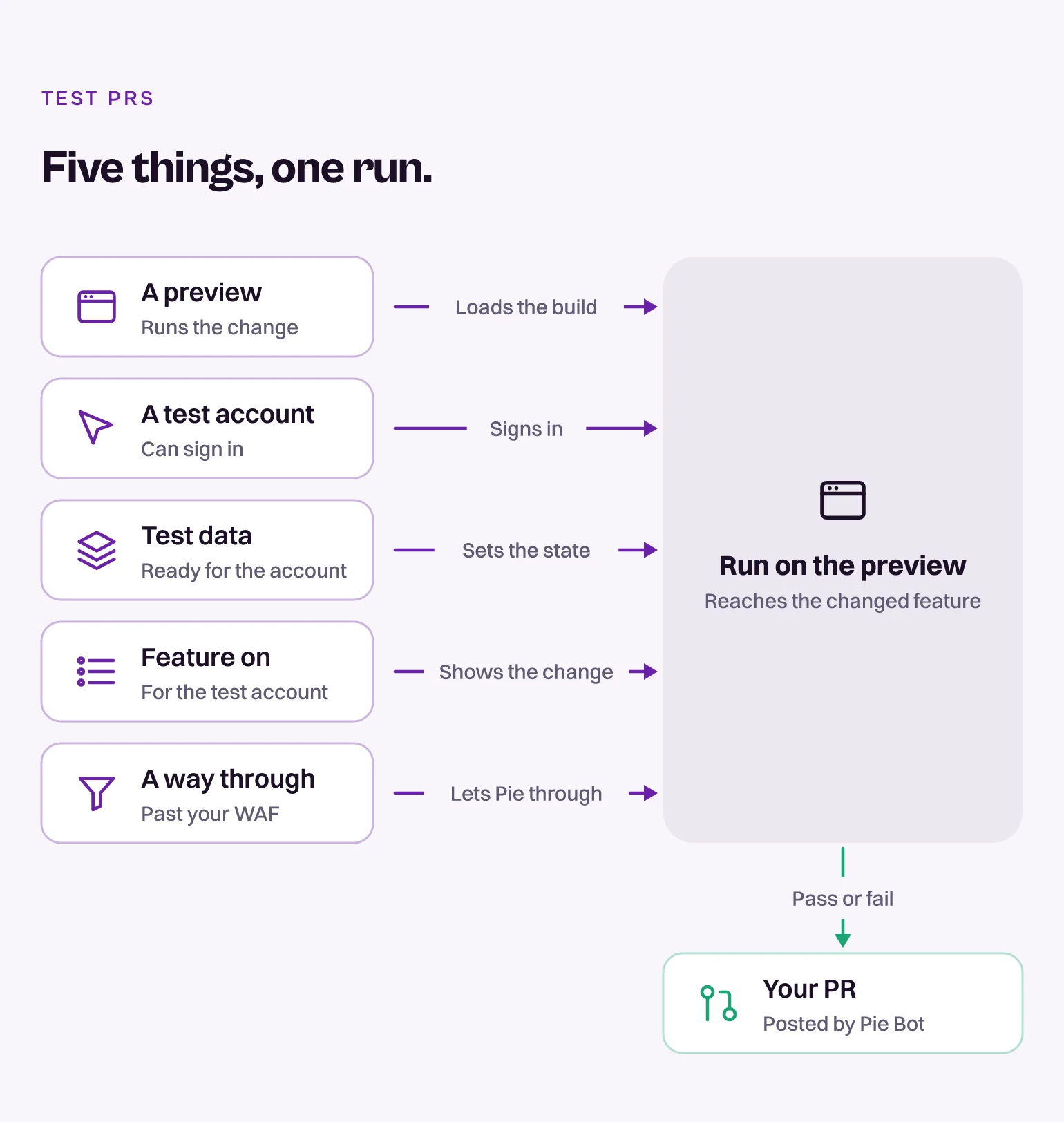
Pie tests a pull request on its preview, the way your users will see the change. For that, it needs five things in place:
- A preview that runs the change.
- A test account that can sign in.
- The data that account needs.
- The changed feature turned on for that account.
- A way through your WAF.
Set these up once, and Pie’s runs reach the feature you changed.
Here is how the five things reach a run.
Before you start
- Get access to the repository you want Pie to watch. Installing the GitHub app needs GitHub organization admin rights, or a way to request them.
- Web apps: give every pull request its own preview URL, so Pie has your change running to test. Pie doesn’t read GitHub deployment or status events. It looks for the URL in this order:
- A URL in an
@pie-pr-bot test <url>comment. On a repository connection, this wins. - A preview or deploy URL in a comment on the PR, such as the one Vercel or Netlify posts.
- A fixed pattern for your app, built from
{number}or{branch}, that Pie sets up for you. Send the pattern to your Pie contact. On a repository connection, the pattern comes before the comment scan.
- A URL in an
- Mobile apps: upload a simulator or emulator build, so Pie has something it can run. See Prepare mobile builds.
- Decide which credentials you’ll store in Credentials Manager, so Pie can sign in.
- Line up the people who can make the fixes. Your application, platform and security engineers give access, approve the changes and maintain the configuration. Pie helps you find what’s blocking it and check each fix.
Get these ready before your first PR runs, so Pie’s first results are about your app, not your setup.
Connect your repository
For GitHub, open Settings, then Integrations. On the GitHub card select Connect, then Install Pie PR Bot, and choose the repositories Pie may use. For GitLab, connect from Integrations and pick the projects Pie should watch. Self-hosted GitLab connects the same way, with a host address and a personal access token.
Start with one repository. For each screen, including approval, see Connect GitHub or GitLab.
Connecting doesn’t test every PR on its own. On GitHub, comment @pie-pr-bot test on a PR or select the rerun button to start a run. To test each PR automatically when it opens or gets a push, ask your Pie contact to turn it on. Draft PRs and Pie’s own fix PRs are skipped. On GitLab, comment /pie on a merge request to test it.
Set up the five things Pie needs
If a run doesn’t reach the changed feature, find what stopped it here:
| What stopped Pie | Where to fix it | Who usually owns it |
|---|---|---|
| The preview has the wrong service versions or missing dependencies | Build a complete preview environment | Platform engineering |
| Pie can’t sign in or use the required role | Prepare identity, access, and test data | Application engineering |
| The target state or record is missing | Prepare identity, access, and test data | Application engineering |
| The test account can’t see the changed feature | Make the changed feature visible | Application engineering |
| A WAF, rate limiter, bot rule or CAPTCHA rejected Pie | Allow Pie traffic safely, then Configure your edge platform | Security or platform engineering |
| Pie reached the feature, but Pie’s side of the run failed | Tell your Pie contact | Pie |
A run that never reached the feature didn’t test your change. Fix what stopped it, then rerun the same path.
Pie gives you the egress addresses to allow for your environment and checks them with you. Browser and mobile runs can leave from different addresses, so never copy a range from another environment or an older document. To confirm the source IP, find one real request in the logs of the component that rejected it. See Allow Pie traffic safely.
Start with the preview environment. Everything else depends on Pie loading the build.
Create a Loop with PR scan
Create a Loop, then add PR scan to it. PR scan works after merge: it reads the PRs merged in the scan period you set and proposes new and updated tests for you to review.
Run the Loop on each merge
Choose API trigger in the Loop’s triggers and call it from your pipeline. Trigger a Loop from CI has the GitHub Actions and GitLab CI files.
What you’ll see
Your PR is ready when Pie can:
- Open one stable preview URL tied to the PR commit.
- Sign in with a dedicated test identity.
- Reach the changed feature with the required role and feature flags.
- Use deterministic test data that can be reset.
- Call every frontend and backend dependency the feature needs.
- Run repeatedly without a WAF, bot check, CAPTCHA or rate limit blocking it.
To check, run the same critical path three times from Pie. All three runs should reach the feature with nobody stepping in.
Before you turn on PR runs, have these on hand:
- Preview URL and commit SHA
- One deployment manifest covering every changed service
- Health checks for the frontend and required services
- Test account, role and enabled feature flags
- Seed and reset commands for test data
- The egress addresses Pie gave you and the exact scope of the network rule
- One blocked request’s timestamp and request ID, if edge access failed
- Three runs that reached the feature
- The person on your team who fixes preview failures and access failures
Still blocked? Contact support@pie.inc.