Trigger a Loop from CI
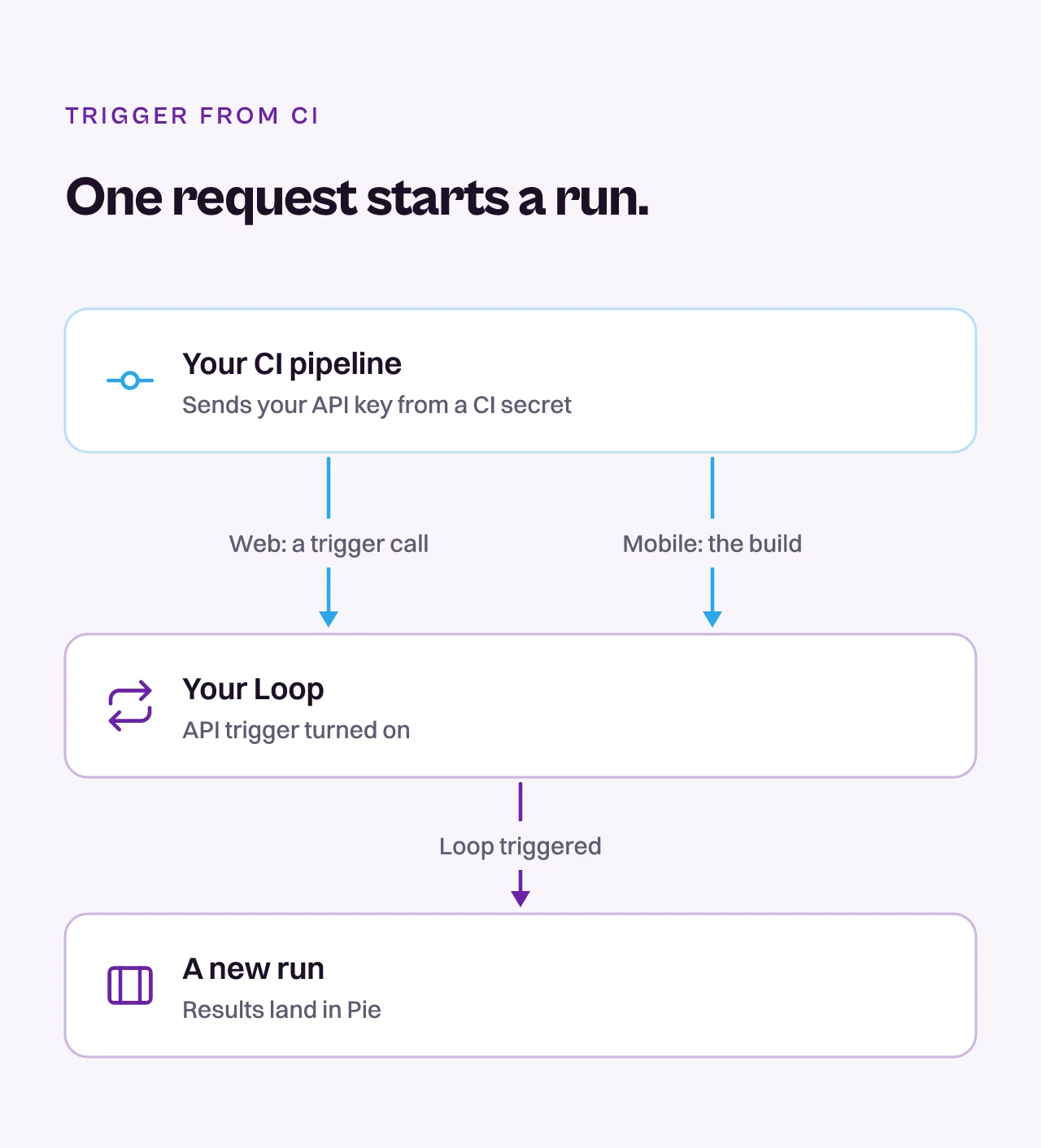
Start a Loop from your CI pipeline with one HTTP request to api.pie.inc. Run its suites on every merge to your default branch, or send a mobile Loop the build your pipeline just made.
Here is the path from your pipeline to a run.
Before you start
- Turn on the API trigger on a Loop. See Create a Loop.
- Get permission to add secrets in your CI settings.
- Mobile Loops only: add a build step that produces an
.apkor a zipped simulator.app. See Prepare mobile builds.
Create an API key
In Pie, open Settings, select API Keys, then select Create API Key, or Add if the app already has a key. Name the key, create it and copy it. Pie shows it only once.
Store the key in your CI
Save the key as a secret named PIE_API_KEY. The snippets on the Loop page read it by that name.
In GitHub, open your repository’s Settings, then Secrets and variables, then Actions, and select New repository secret. In GitLab, add a masked CI/CD variable. Masking keeps the key out of job logs.
Copy the Loop’s command
Open the Loop from Loop. In When it runs, find the API trigger row and select Show command. Choose curl, GitHub or GitLab, then select Copy.
The command has your Loop’s ID filled in and YOUR_API_KEY where the key goes. Pie never prints a key. For a web Loop, the curl command looks like this:
curl --fail-with-body -X POST https://api.pie.inc/v1/loops/trigger \
  -H "X-API-Key: YOUR_API_KEY" \
  -H "Content-Type: application/json" \
  -d '{"scheduleId": "LOOP_ID"}'
Run it in your terminal with your key and Loop ID in place to check that the Loop fires. You’ll get HTTP 200 with “Loop triggered”, and a new run starts.
Add the pipeline file
For GitHub Actions, copy the GitHub snippet from the Loop page and save it as .github/workflows/pie.yml. For a web Loop it looks like this:
name: Run Pie loop
on: workflow_dispatch

jobs:
  pie:
    runs-on: ubuntu-latest
    steps:
      - name: Fire the Pie loop
        run: |
          send() {
            curl -sS -o resp.json -w '%{http_code}' -X POST https://api.pie.inc/v1/loops/trigger \
              -H "X-API-Key: ${{ secrets.PIE_API_KEY }}" \
              -H "Content-Type: application/json" \
              -d '{"scheduleId": "LOOP_ID"}'
          }
          code=$(send)
          if [ "$code" = 429 ]; then
            echo "Rate limited, retrying in 30s"
            sleep 30
            code=$(send)
          fi
          cat resp.json
          case "$code" in
            200|202) ;;
            *) exit 1 ;;
          esac
on: workflow_dispatch makes it a manual workflow that runs when you select Run workflow in GitHub. To start the Loop on every merge, replace that line with a push trigger. The Loop page’s snippet doesn’t include it, but its build-upload workflow uses the same trigger:
on:
  push:
    branches: [main]
Change branches: [main] if your default branch has another name.
For GitLab CI, copy the GitLab snippet and save it as .gitlab-ci.yml at the root of your repository:
stages:
  - test

pie:
  stage: test
  image: curlimages/curl:latest
  rules:
    - when: manual
      allow_failure: true
  script:
    - |
      send() {
        curl -sS -o resp.json -w '%{http_code}' -X POST https://api.pie.inc/v1/loops/trigger \
          -H "X-API-Key: $PIE_API_KEY" \
          -H "Content-Type: application/json" \
          -d '{"scheduleId": "LOOP_ID"}'
      }
      code=$(send)
      if [ "$code" = 429 ]; then
        echo "Rate limited, retrying in 30s"
        sleep 30
        code=$(send)
      fi
      cat resp.json
      case "$code" in
        200|202) ;;
        *) exit 1 ;;
      esac
It runs as a manual job that waits for you to start it. To start the Loop on every merge to the default branch, replace the job’s rules with this one. The Loop page uses the same condition for its build-upload pipeline:
  rules:
    - if: $CI_COMMIT_BRANCH == $CI_DEFAULT_BRANCH
Commit and check the job
Commit the file to your default branch. With the manual version, start the workflow or job by hand. With the push trigger or the branch rule, the next merge starts the job, and the job starts the Loop.
What you’ll see
The CI job passes when Pie answers with HTTP 200 or 202. In Pie, the Loop’s page lists the new run, and Run History shows the firing as one card.
If the job fails, check the response it prints against the request reference.
Send a mobile build with the Loop
Mobile Loops have a second command that uploads the build your pipeline produced and fires the Loop against it. The Loop page shows both commands as tabs:
- Trigger only fires the Loop against the build you last uploaded to Pie. Nothing new is sent.
- Trigger with a build uploads a new build, and the Loop fires once Pie verifies it.
The curl form of Trigger with a build:
curl --fail-with-body -X POST https://api.pie.inc/v1/app/builds/loop \
  -H "X-API-Key: YOUR_API_KEY" \
  -F "scheduleId=LOOP_ID" \
  -F "commitSHA=$(git rev-parse HEAD)" \
  -F "file=@BUILD_FILE"
Swap BUILD_FILE for your build’s path. On iOS, send a simulator .app zipped with ditto, such as App.zip. Pie refuses .ipa files. On Android, send an .apk. The GitHub Actions version has a slot for your own build step:
name: Test this build with Pie
on:
  push:
    branches: [main]

jobs:
  pie:
    runs-on: ubuntu-latest
    steps:
      - uses: actions/checkout@v4

      # Your build step goes here. It must produce the file named below.

      - name: Send the build to Pie
        run: |
          send() {
            curl -sS -o resp.json -w '%{http_code}' -X POST https://api.pie.inc/v1/app/builds/loop \
              -H "X-API-Key: ${{ secrets.PIE_API_KEY }}" \
              -F "scheduleId=LOOP_ID" \
              -F "buildID=loop-${{ github.sha }}" \
              -F "commitSHA=${{ github.sha }}" \
              -F "file=@BUILD_FILE"
          }
          code=$(send)
          if [ "$code" = 429 ]; then
            echo "Rate limited, retrying in 30s"
            sleep 30
            code=$(send)
          fi
          cat resp.json
          case "$code" in
            200|202) ;;
            *) exit 1 ;;
          esac
The Loop page shows ubuntu-latest for an Android Loop and macos-latest for an iOS Loop, because an iOS build step needs Xcode. The GitLab version uses two jobs, because each GitLab job starts in a clean directory and the build reaches the upload job only as an artifact:
workflow:
  rules:
    - if: $CI_COMMIT_BRANCH == $CI_DEFAULT_BRANCH

stages:
  - build
  - test

build:
  stage: build
  # Your build step goes here. It must produce the file named below.
  script:
    - echo "replace me with your build"
  artifacts:
    paths:
      - BUILD_FILE

pie:
  stage: test
  image: curlimages/curl:latest
  needs: [build]
  script:
    - |
      send() {
        curl -sS -o resp.json -w '%{http_code}' -X POST https://api.pie.inc/v1/app/builds/loop \
          -H "X-API-Key: $PIE_API_KEY" \
          -F "scheduleId=LOOP_ID" \
          -F "buildID=loop-$CI_COMMIT_SHA" \
          -F "commitSHA=$CI_COMMIT_SHA" \
          -F "file=@BUILD_FILE"
      }
      code=$(send)
      if [ "$code" = 429 ]; then
        echo "Rate limited, retrying in 30s"
        sleep 30
        code=$(send)
      fi
      cat resp.json
      case "$code" in
        200|202) ;;
        *) exit 1 ;;
      esac
Run the job on pushes to the default branch, not on pull request events. The commit on a pull request event isn’t in the base branch’s history, and Pie rejects it.
Request reference
Both endpoints take your API key in the X-API-Key header.
POST https://api.pie.inc/v1/loops/trigger takes a JSON body:
| Field | Type | Required | Default | Description |
|---|---|---|---|---|
scheduleId | string | yes | none | The Loop’s ID. The command on the Loop page has it filled in. |
commitSHA | string | no | none | A commit SHA of 7 to 40 hexadecimal characters. |
POST https://api.pie.inc/v1/app/builds/loop takes a multipart form:
| Field | Type | Required | Default | Description |
|---|---|---|---|---|
scheduleId | string | yes | none | The Loop’s ID. |
file | file | yes | none | The build to test: an .apk, or a zipped simulator .app (.zip or .tar.gz). The endpoint also accepts .aab, .tar, .gz and .tgz, but Pie can’t run tests on them. It rejects .ipa and an unzipped .app. |
commitSHA | string | no | none | The commit the build came from: 7 to 40 hexadecimal characters. |
buildID | string | no | loop-<digest> | A fixed ID for the build, at most 150 characters and with no /. When you leave it out, Pie derives loop-<digest>. The CI snippets set it to loop- plus the commit SHA, so retrying a job doesn’t fire the Loop a second time. |
days | integer | no | none | A number of days from 1 to 90, for a fixed lookback instead of the Loop’s own window. The Loop page suggests days=7. |
idempotencyKey | string | no | none | A key for the request. Reuse the same value when you retry the same request. |
Responses and errors
The two endpoints don’t always return the same code for the same problem, so each has its own table.
Responses from the trigger-only call
| Code | Meaning | What to do |
|---|---|---|
| 200 | Pie fired the Loop (“Loop triggered”). | Nothing. A new run starts. |
| 400 | scheduleId is missing, or commitSHA is not 7 to 40 hexadecimal characters. | Fix the request. |
| 403 | The Loop’s API trigger is turned off, or the Loop ID is unknown or belongs to another app. | Tick API trigger in Configure triggers and save, or check the Loop ID and which app your key belongs to. |
| 422 | The Loop is paused, or it has no suites. | Resume the Loop with the resume button on its card, or add a suite. |
Responses from the build upload
| Code | Meaning | What to do |
|---|---|---|
| 202 | Pie accepted the build. The Loop fires once Pie verifies it. | Nothing. |
| 200 | Pie already has this exact build, and its Loop already fired. | Nothing. This is the right outcome when a job is retried. |
| 400 | scheduleId is missing, commitSHA is not 7 to 40 hexadecimal characters, or the file type is not accepted. | Fix the request. Send an .apk or a zipped .app. |
| 403 | The Loop’s API trigger is turned off, or the Loop ID is unknown or belongs to another app. | Tick API trigger in Configure triggers and save, or check the Loop ID and which app your key belongs to. |
| 409 | The Loop is paused, or the Build ID is already used by a different build. | Resume the Loop with the resume button on its card, or send a new buildID. |
| 413 | The file is too large. | Send a smaller build. |
The --fail-with-body flag makes curl exit with an error on a failed request and print Pie’s explanation, instead of reporting success.
Upload builds with the GitHub Action
To upload builds without firing a Loop, use the Pie Build Uploader GitHub Action. It takes an .app or an .apk, zips a build directory for you, and reads your key from a secret.
name: Upload Build to Pie

on:
  release:
    types: [published]

jobs:
  upload:
    runs-on: ubuntu-latest
    steps:
      - uses: actions/checkout@v2

      # Your build steps here

      - name: Upload to Pie
        uses: pielabsai/upload-build-action@v1.2
        with:
          pie_api_key: ${{ secrets.PIE_API_KEY }}
build_path: path/to/your/build.app # or .apk| Input | Type | Required | Default | Description |
|---|---|---|---|---|
pie_api_key | string | yes | none | Your Pie API key. Read it from a secret. |
build_path | string | yes | none | Path to your build file or directory. |
The on: block accepts any GitHub trigger: a published release, a version tag, a manual run, a schedule, or a merged PR.
If an upload fails, check three things: the key is in the secret, build_path points at a file that exists, and the file is an .app, .apk or .zip. For help, contact support@pie.inc.