Save app instructions
App instructions are free-text notes Pie uses as context when it runs tests in your app. Use them to tell Pie what to skip, where to focus, how to sign in and how to get through screens that are hard to read from the interface alone.
Before you start
- Know where Pie gets lost or wastes time in your app: a hidden menu, an unreleased area you don’t want tested, a flow that starts in an unusual place.
- Decide whether the guidance fits every suite. A suite can have its own instructions, which replace these for its runs.
- If Pie needs a login for the screens you describe, store it first in Credentials Manager.
Open App Instructions
In Settings, select App Instructions.
Write the instructions
Write what Pie should do or avoid, in plain sentences. Name the screen or control, not only the goal: “Use the login button in the top right corner” or “Go to the settings page through the hamburger menu”.
Login guidance goes here too. There’s no separate login instruction.
Save the instructions
Select Save Instructions. The button turns on once you’ve changed the text.
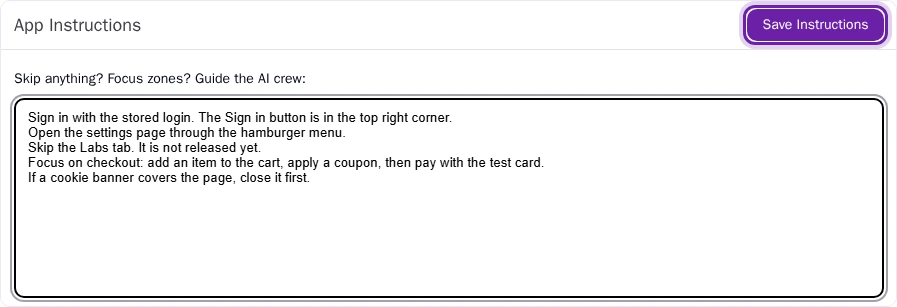
What you’ll see
Your saved text stays in the field. Runs in suites without their own instructions use it as context. If saving fails, try again.